

Environment Setup
This guide walks you through setting up the core building blocks of Ellaworks: a prompt registry, an environment, and optionally a fleet and LLM provider. By the end you’ll have a working foundation for versioning and deploying prompts.
Set up a Prompt Registry
A registry is where your versioned prompt artifacts live — think of it as a package repository scoped to your organization.
Registries, environments, and secrets are managed by organization owners and admins. Other members don’t see these pages in the sidebar.
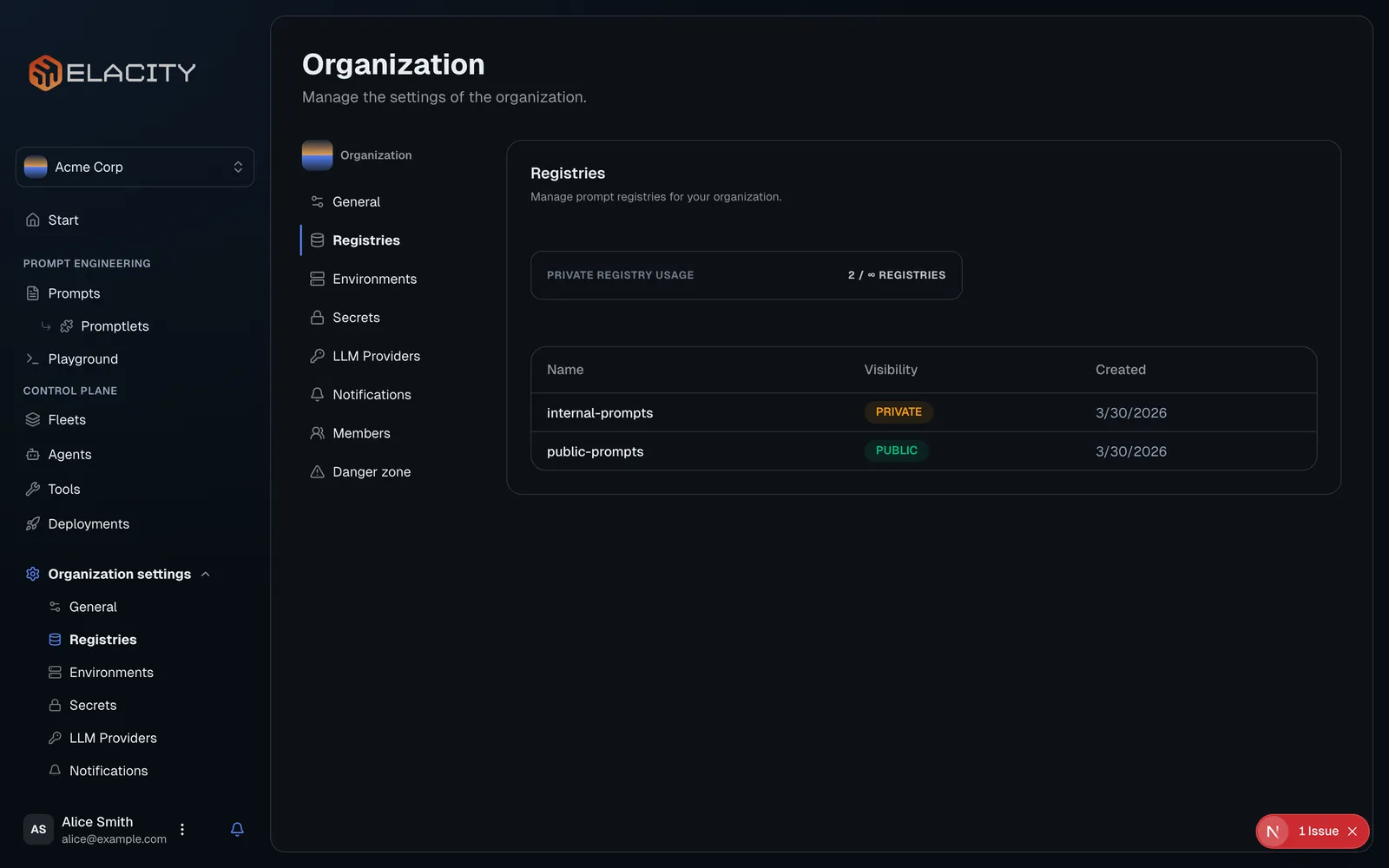
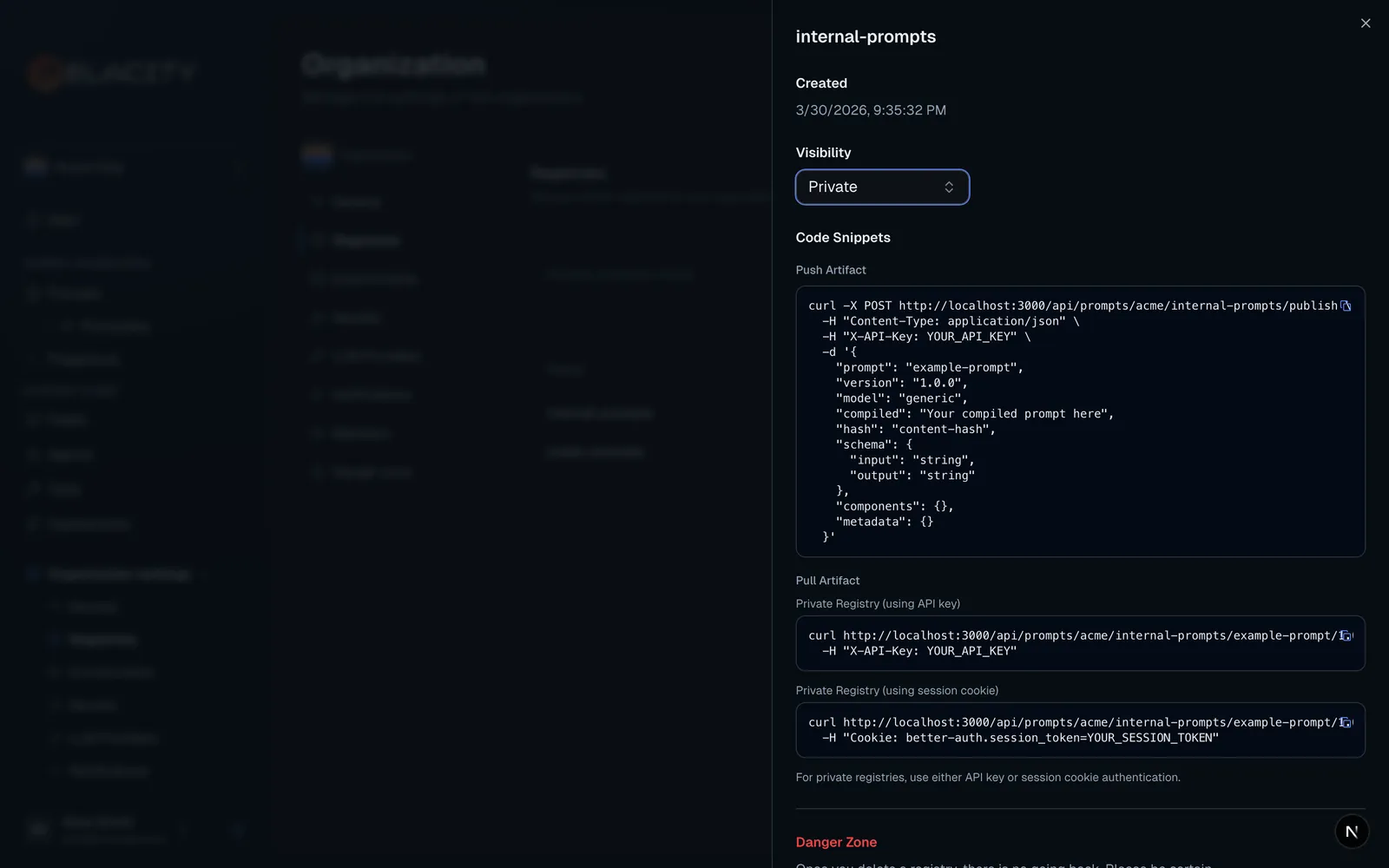
Public vs Private Registries
Prompts are pulled from /api/prompts/{org-slug}/{registry-name}/{prompt-name}/{version}, with an optional model query parameter (defaults to generic).
Accessing a public registry — no authentication needed:
Accessing a private registry — requires an API key from the registry’s organization (X-API-Key or Authorization: Bearer; if both are sent, X-API-Key wins):
Public registries are great for sharing prompt templates with the community or across teams. Use private registries for anything you don’t want exposed outside your organization. Requests for a private registry without valid access return 404 Not found, so the registry’s existence isn’t revealed.
Add an Environment
Environments let you isolate provider credentials, variables, and configuration per deployment stage. A typical setup includes development, staging, and production environments.
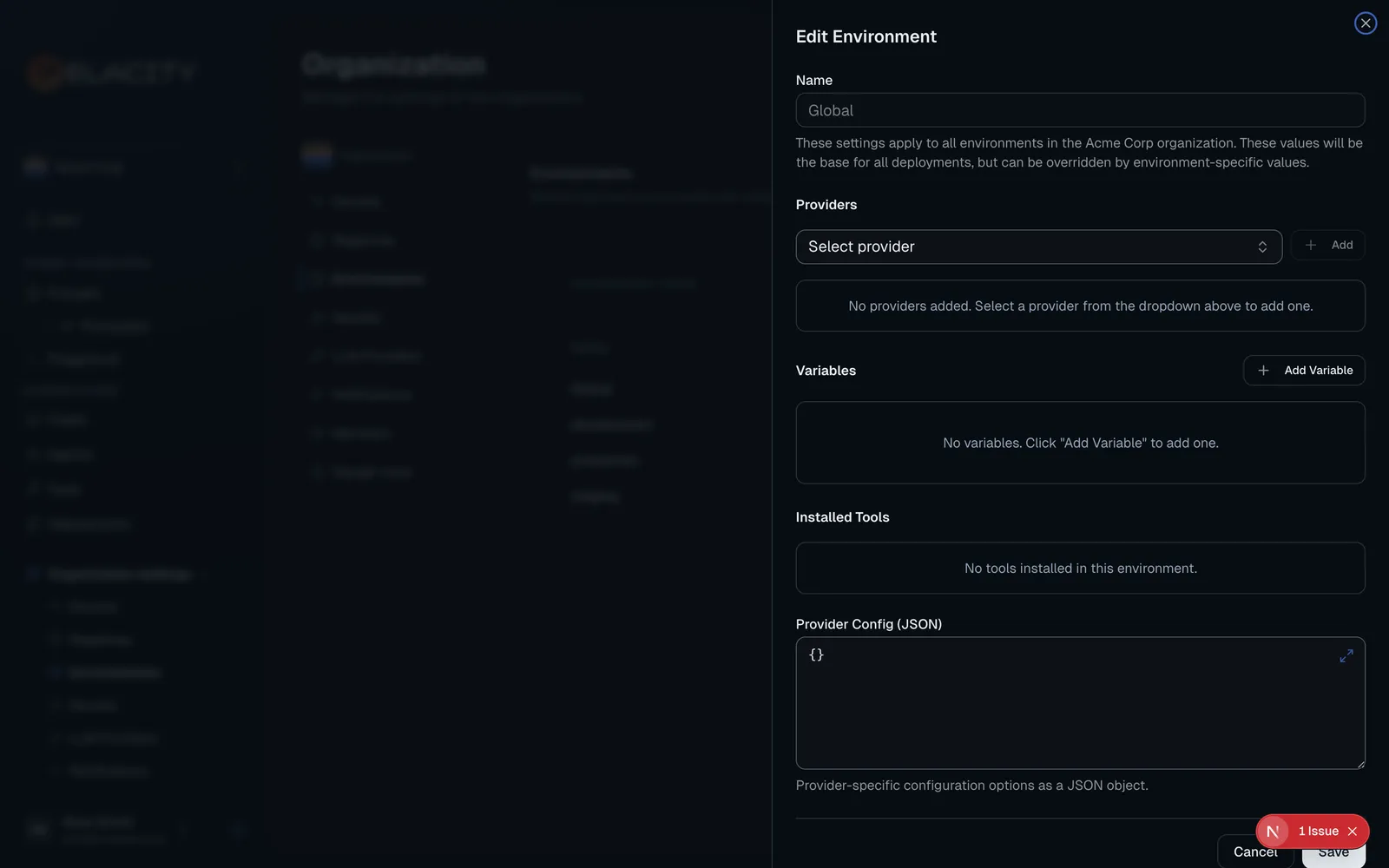
Every organization also has a Global environment, created automatically. Its variables and provider credentials are the base for every other environment; an individual environment only needs to define the values it overrides.
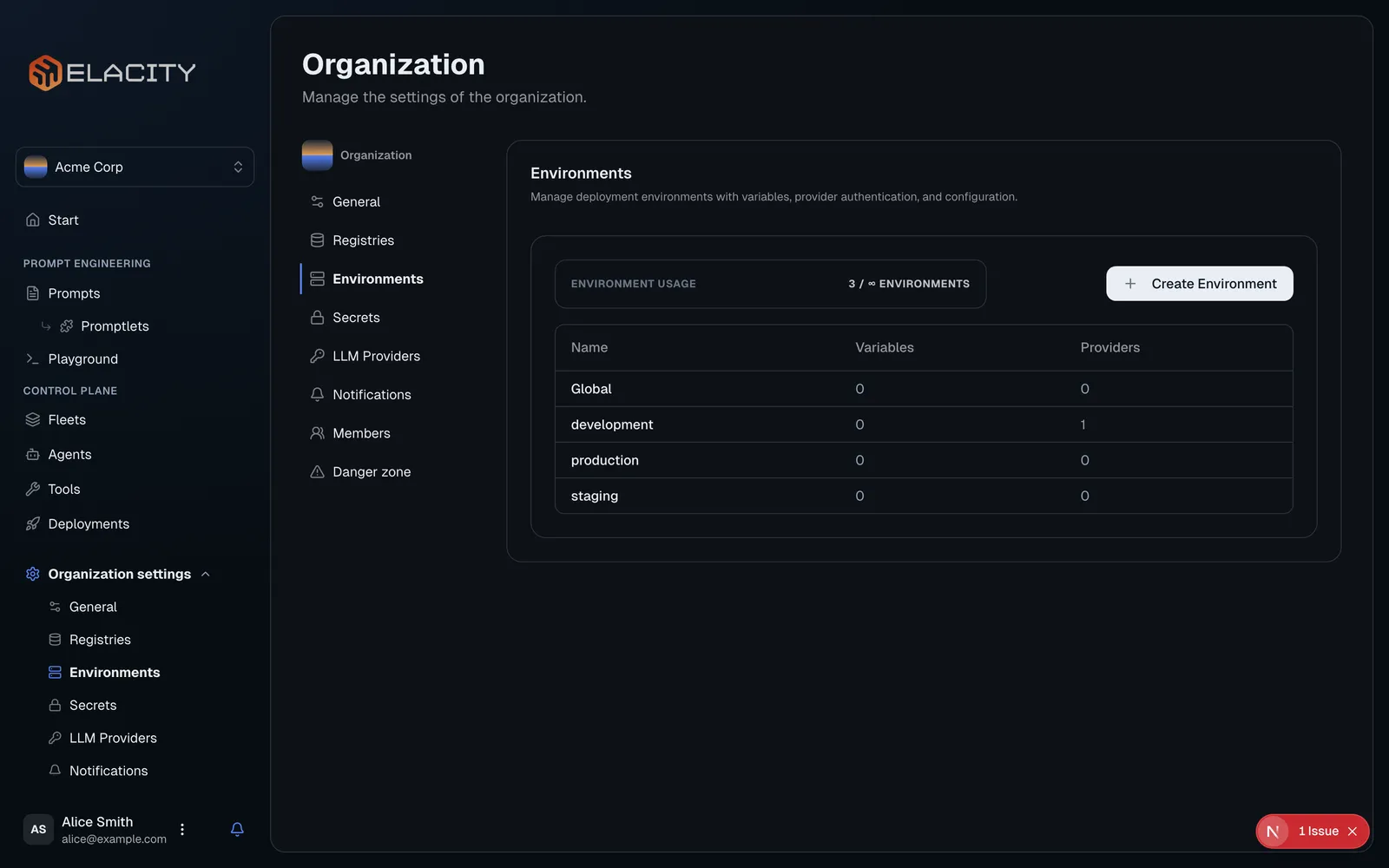
Create an environment
Click Create Environment and give it a Name (e.g. development). The name * is reserved for the Global environment.
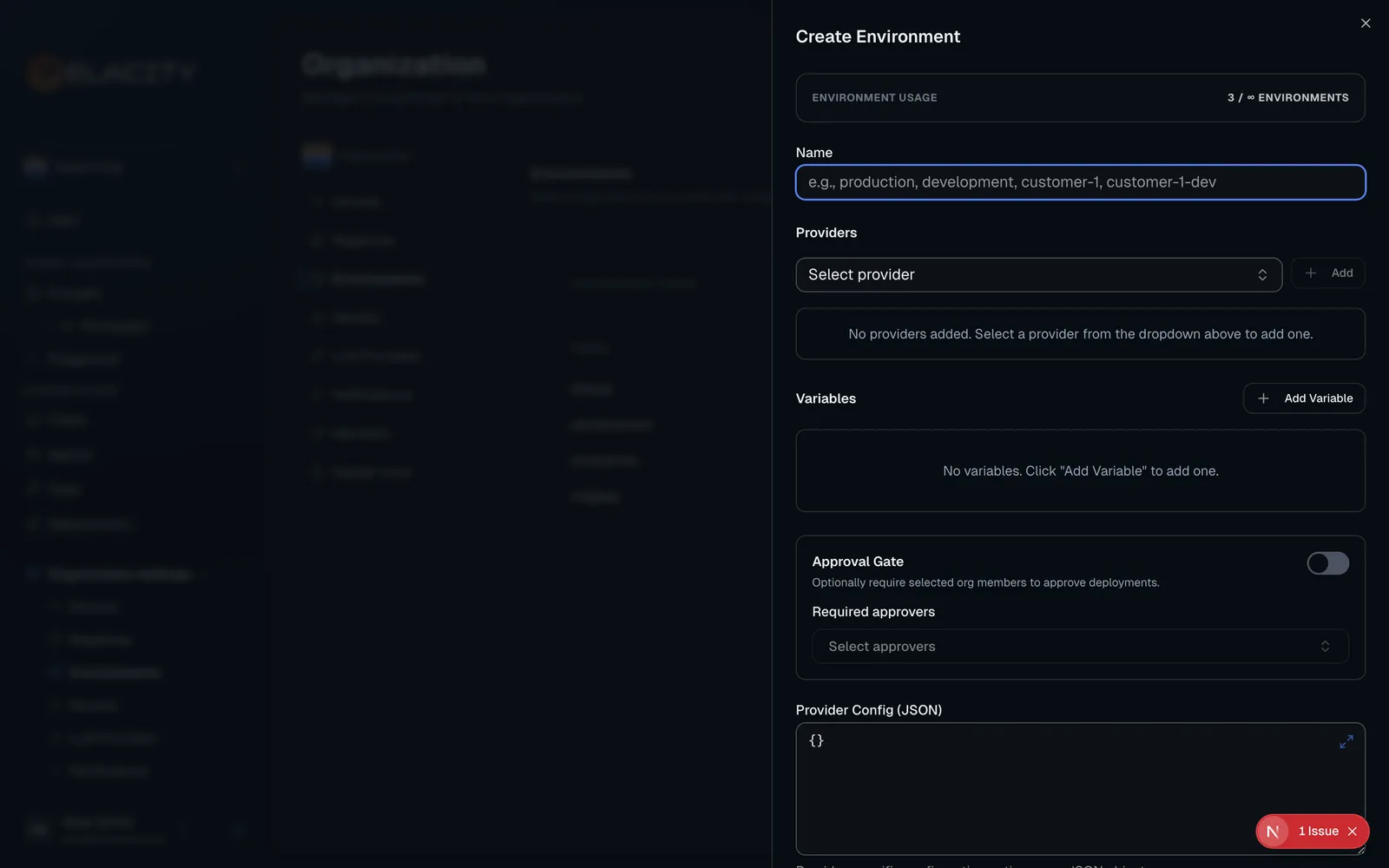
Configure a provider
Under Providers, select a deployment provider, click Add, and fill in its credentials so Ellaworks can deploy agents on your behalf:
Credentials are never stored inline: pick an existing secret or create a new one in place. The environment stores a reference such as ${VAPI_API_KEY}, and the encrypted value lives on the Secrets page (under Delivery), where you can rotate it without editing each environment.
Providers configured on the Global environment apply to every environment automatically — add the same provider to an individual environment only to override its credentials there.
Add variables
Under Variables, click Add Variable to define key-value pairs that get injected into your prompts at deployment time. Names may contain letters, numbers, dashes, and underscores. For example:
Reference a variable in a prompt as {{env.variables.COMPANY_NAME}}. Ellaworks substitutes the values when it compiles the prompt for a deployment, so your prompt templates stay generic while each environment fills in the right values. Variables inherited from the Global environment are labeled Inherited from Global; setting the same key here overrides it.
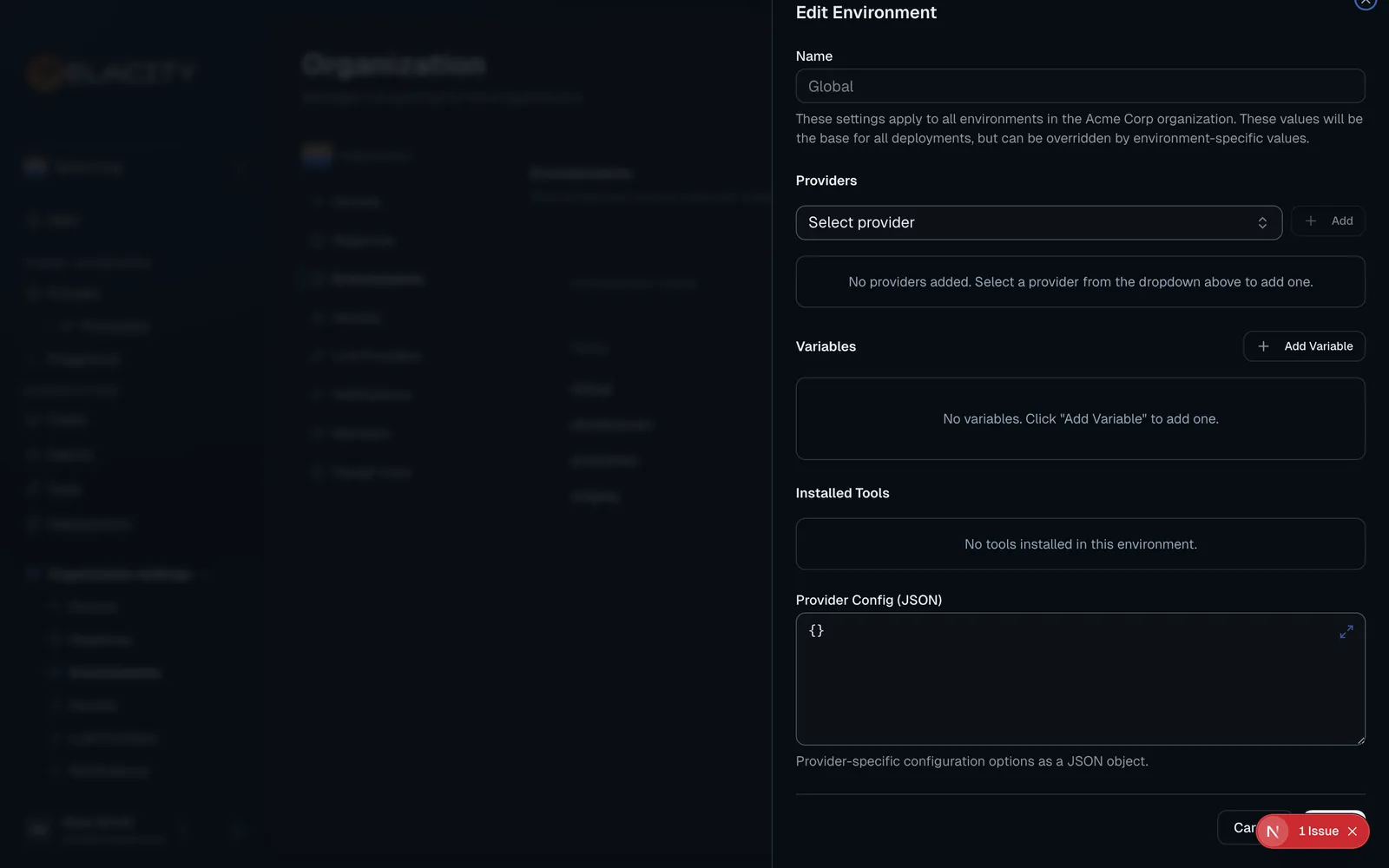
When the same variable is set at several levels, the most specific value wins: Agent overrides Fleet, which overrides the Environment, which overrides Global.
Approval gates
Turn on Approval Gate for an environment and choose Required approvers from your organization’s members. Deployments to that environment are then held as pending approval, and run only after every required approver has approved. Approval gates are available on every environment except Global.
Drift detection
Turn on Drift Detection to have Ellaworks check daily that agents deployed to that environment still match their expected configuration on the provider. Only one environment per organization can have drift detection enabled — typically production.
Your plan may limit how many environments you can create. The create form shows your current usage and offers an upgrade when you’ve reached the limit.
Why use environments?
- Safe testing — validate changes in
developmentbefore they reachproduction - Separate credentials — each environment can use its own provider API keys, stored as encrypted secrets
- Variable substitution — the same prompt template produces different output per environment (e.g. different support URLs, company names, or escalation contacts)
- Approval gates — optionally require named approvers to sign off before deploying to sensitive environments
Create a Fleet (Optional)
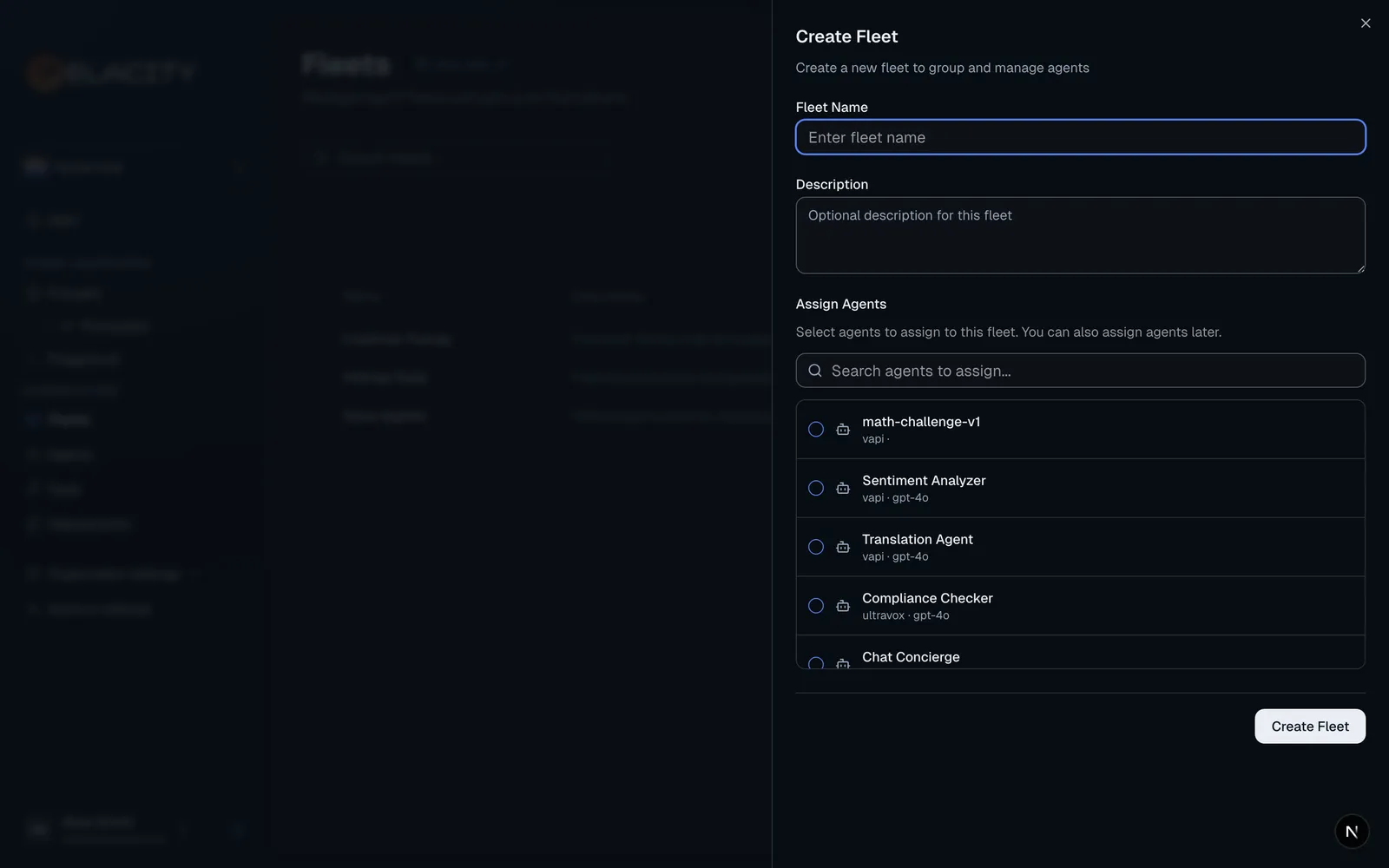
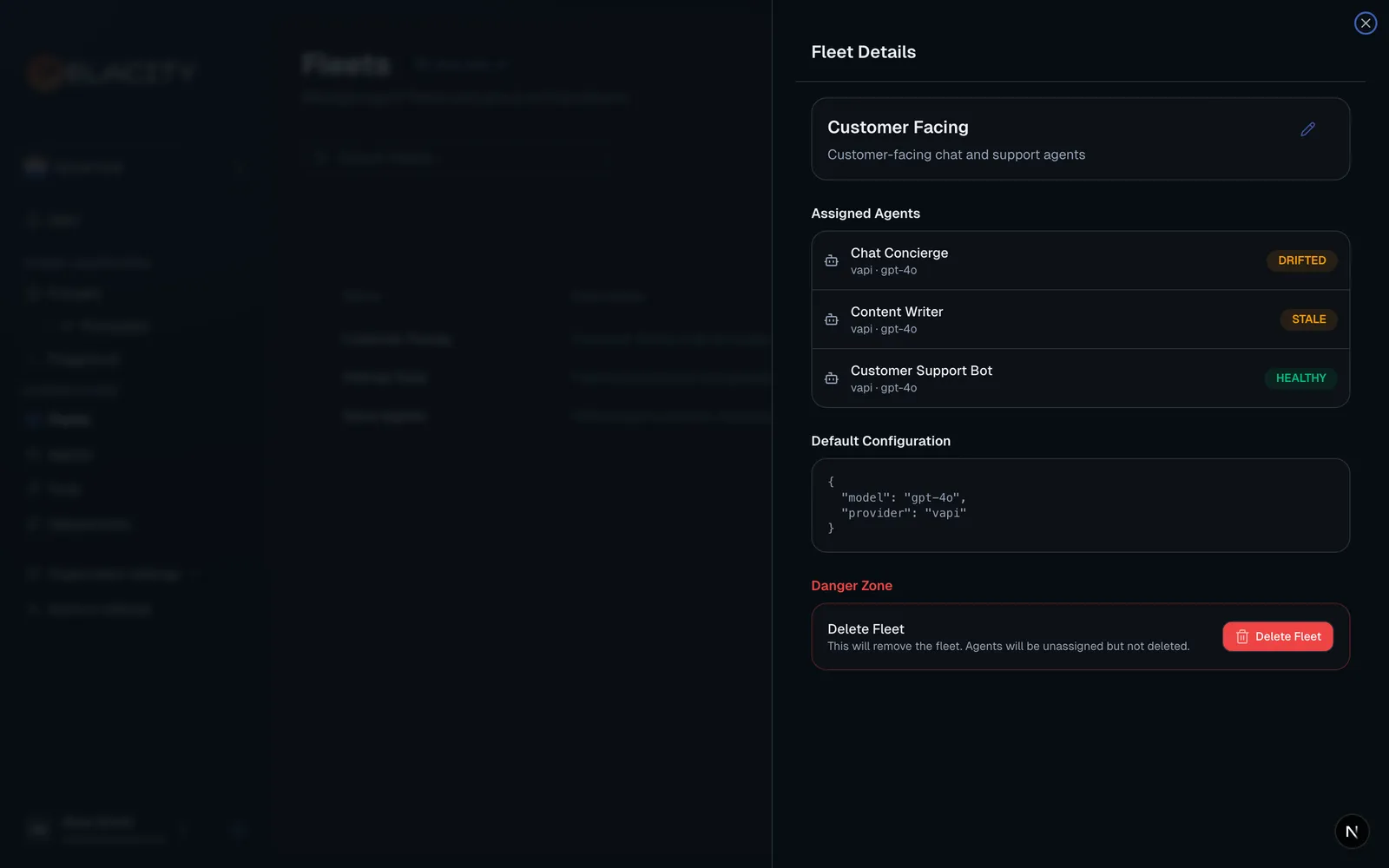
Fleets are logical groupings of agents. If you only have a few agents, you can skip this step and come back later.
Why use fleets?
- Shared variables — fleet variables apply to every agent in the fleet, overriding environment values (agents can still override them)
- Organization — group agents by function (e.g. “Customer Support”, “Sales Outbound”, “Internal Tools”) and see each deployment’s fleet in deployment details
Set up an LLM Provider (Optional)
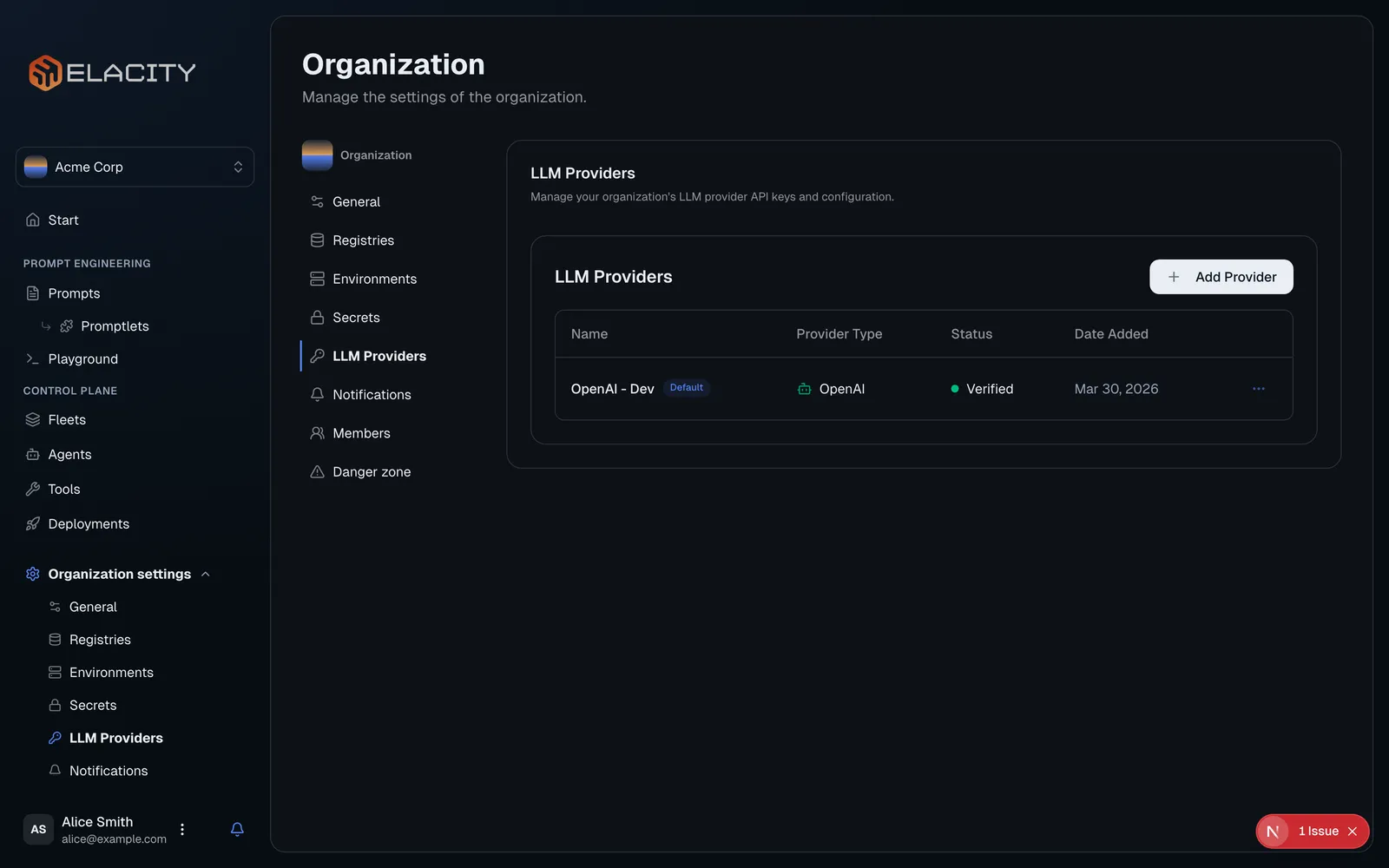
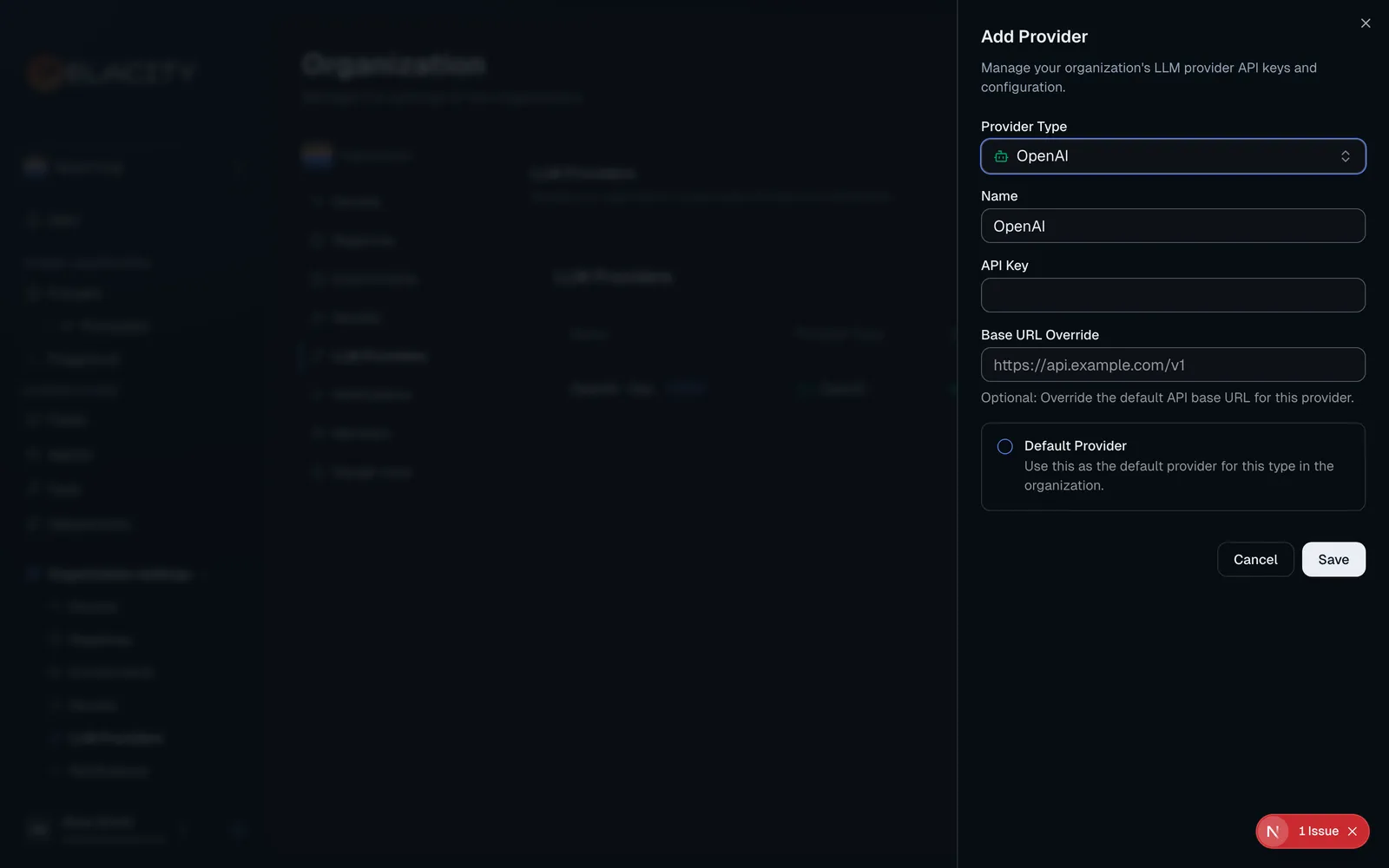
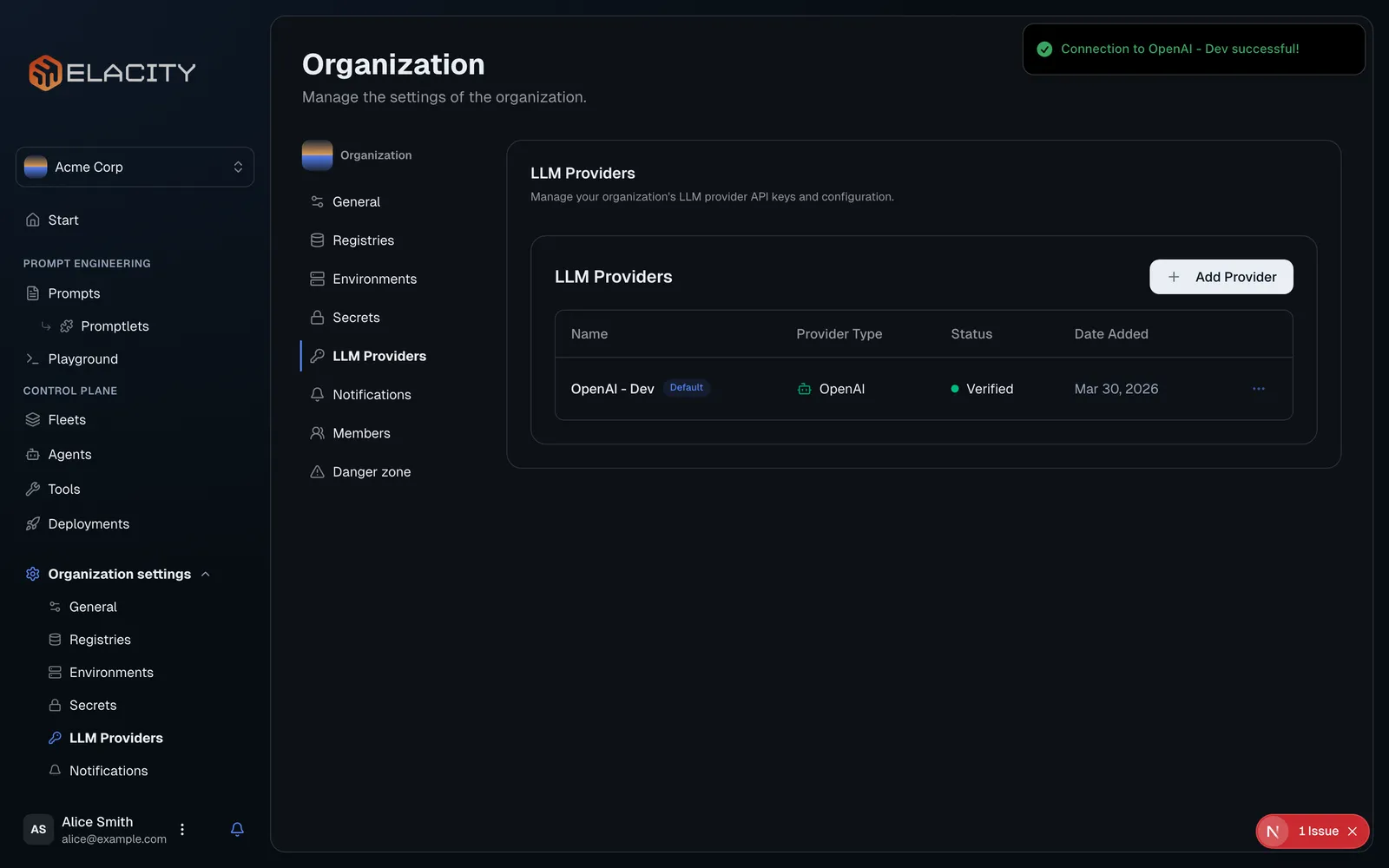
LLM providers give Ellaworks access to language models for the playground and for governance policy evaluations. This is separate from the deployment provider credentials you set in an environment.
Navigate to LLM Providers
In the sidebar, open Organization settings → LLM Providers (organization owners and admins only).
Why set up an LLM provider?
- Playground — test prompts interactively against real models before deploying
- Governance — the default provider is also used for automated governance policy evaluations
- Encrypted storage — API keys are encrypted at rest, not stored in plaintext
- Shared access — team members can use the playground without needing their own API keys